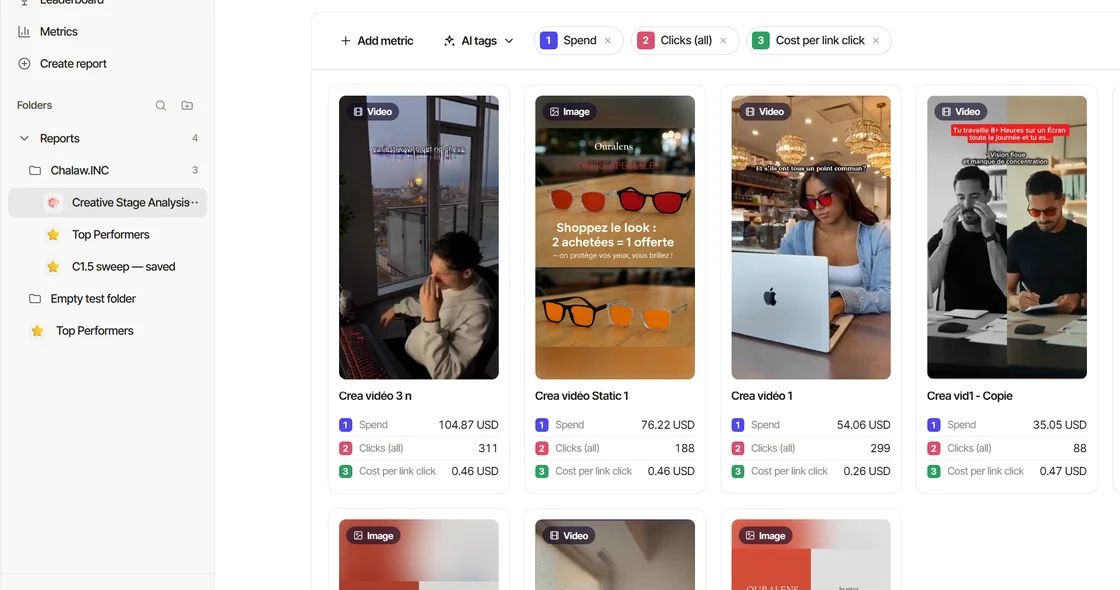
Connect Claude to Creativity and it answers from your own numbers: your Meta ad performance, your creatives with their AI tags, transcripts and ad copy, the comments under your ads, your saved reports and the competitor ad library. It reads one workspace, the one you pick. It never changes anything in Meta, and it changes your saved reports only if you allow edits.
What you need
- In Creativity: you are an owner or admin of a workspace on the Standard plan or its free trial. A member sees "Ask your workspace owner" instead.
- In Claude: an account that can add custom connectors. Add it on the web or in the desktop app; the desktop app's Cowork, the mobile apps and Claude Code then use it too.
Connect in one click
- In Creativity, open Settings → Account → Connect AI, on the Claude tab.
- Press Add to Claude. Claude opens its Add custom connector window with the name and the address already filled in.
- Claude shows a red banner saying the connector was suggested by an external link. That is expected. Check that the name is Creativity and the address is
https://mcp.creativity.run/mcp, then press Add. - Press Connect and sign in to Creativity if you are asked to.
- On Creativity's consent page, under Select workspace, pick the workspace this connection will read. If only one of your workspaces can connect, it is already picked.
- Leave Allow edits unticked unless you want Claude to manage your saved reports (see below). Press Allow.
Or add it by hand
- In Claude, open Customize, then Connectors.
- Press +, then Add custom connector.
- Name it Creativity and paste
https://mcp.creativity.run/mcp(the Remote MCP Server URL on the Connect AI page has a Copy button). - Press Add, then Connect, sign in to Creativity, pick the workspace and press Allow.
On Claude Team or Enterprise, your Claude owner adds the connector once under Organization settings → Connectors. Then each person presses Connect and signs in with their own Creativity account.
One workspace per connection
Each connection reads one workspace: the one picked on the consent page. Claude can always tell you which one: ask "Which Creativity workspace can you read?"
To work on another brand, change the connection's workspace in Creativity: Settings → Account → Connect AI, under Connected clients, open the connection's Workspace menu and pick another one. The change applies from Claude's next request, in every chat that uses this connection. Changing the workspace turns Allow edits off.
Your first questions
Ask in plain words: "What were my best ads last week?", "Which hooks work best for us?", "What do people say under our ads?", "What are my competitors running right now?"
The best results come after you brief Claude on your brand once, in a Claude Project for that brand. Get the most out of Claude and ChatGPT explains how, with the brief ready to send.
Your ads in a gallery
In Claude on the web, the desktop app, Cowork and the iPhone app, your ads also appear as a gallery you can play right in the chat:
- Each card shows the ad, its key numbers and its AI tags, each with the same icon and colour as in Creativity. Hover a tag to see its dimension.
- Tap a card to open its detail in place: the metrics, every tag, the transcript and the ad copy. ← Back to the grid returns to where you were. Opening a detail is one request to Creativity (the same as asking Claude for that creative).
- In full screen, the detail groups the tags under Visual, Persona, Messaging and Hook, as Creativity's tag panel does.
- Competitor ads appear as a feed you can play the same way.
Elsewhere (Claude Code, ChatGPT) the same answer comes as text, with links to open the ads in Creativity.
Claude looks at your ads
Claude can look at a creative, not just read its numbers. For a video, Creativity sends a storyboard: one image with the video's frames in a grid, each labelled with its time, beside the timestamped transcript. While a video's storyboard is being made, Claude gets its poster instead. A static ad is sent as its image. Ask "Look at my top ad and tell me what the first three seconds show."
The comments under your ads
With a Facebook Page connected (Connect your Facebook Page), Claude can read the comments under your own Facebook and Instagram ads, newest first. It gets the text only: phone numbers, email addresses and @mentions are masked, and the commenter's name or profile is never sent. Use it as customer research: "What objections come up under our ads this month?"
Let Claude edit your saved reports
Allow edits is off by default, for each connection separately. Turn it on with the box on the consent page, or later with the Allow edits switch on the connection in Settings → Account → Connect AI. It applies from Claude's next request.
With it on, Claude can create a saved report, change one (its title, emoji, the line under the title, its dates, how it groups, its filters and its chart), delete one and restore one you deleted:
- A delete is never final. Creativity keeps the deleted report, and Claude can restore it by its title. A shared link to it stops working; restoring the report does not bring the link back.
- Filters replace the report's own. A filter looks like
{"field": "metric:spend", "operator": "gte", "value": 50}("spend is at least 50"). When Claude sets filters on a report built from a template, they replace every filter the template had. Ask Claude to show you a report's settings first if you are unsure. - Nothing else. Claude never shares a report, publishes one, invites anyone or touches Meta. Your Meta campaigns change only in Ads Manager.
If your workspace doesn't take edits from AI assistants yet, there is no Allow edits box or switch to turn on, and Claude says edits aren't open for it yet.
In Cowork, Claude may ask for your approval before each edit: changing or deleting a report counts as an action that changes your data.
Ask Claude how Creativity works
Claude can search this help center. Ask "How do I connect my Facebook Page?" or "Why is a number missing?" and it reads the right article and links it.
Power up Claude with the strategist plugin
On a paid Claude plan, the Creativity strategist plugin adds nine creative strategy skills (Brand Intake, Creative Analysis, Review Audit, Creative Strategy Engine, Hook Writing, Hook Tactics, Hook Voice Patterns, Creative Mechanics and Visual Formats), a skill that connects them to your Creativity data, and five commands: /strategy-run, /audit, /daily-check, /weekly-review and /monthly-review.
- In Creativity, Settings → Account → Connect AI → Skills → Download the plugin.
- In Claude, open Customize, then Plugins, and press Add.
- Upload the file you downloaded.
The plugin uses the Creativity connection you already have: no second sign-in. If you added these skills to Claude yourself before (as personal skills), turn your old copies off in Customize → Skills, so Claude uses the plugin's. To update the plugin, download it again, remove the old one in Customize → Plugins, and add the new file.
Claude Cowork
Cowork, in Claude's desktop app, uses the same connector and plugin. The gallery works there (grid, detail, competitor feed, full screen), and Cowork can run prompts on a schedule (Your routine has the steps; we have not tested schedules with Creativity yet). It may ask for your approval before Claude edits or deletes a saved report.
Claude Code
Signed in to Claude Code with your Claude account, the Creativity connector you added in Claude is available there too. Answers come as text, without the gallery.
Disconnect
In Settings → Account → Connect AI, Connected clients lists every connection. Press Revoke: the connection stops working from Claude's next request, and its workspace and Allow edits are reset. Claude registers a new connection each time you connect it, so Claude can appear more than once: revoke each one you no longer use.
Removing the connector in Claude (Customize → Connectors) stops Claude asking, but keeps this connection's workspace and edits for when you add it back.
What Claude can and cannot see
- It reads the workspace picked for this connection, and nothing else.
- It reads the same numbers Creativity shows you, as of Creativity's last sync. It never reads Meta live, and it never computes a number of its own: a missing value comes with its reason.
- It reads comments as text only, never who wrote them.
- It never changes anything in Meta. It changes your saved reports only with Allow edits on.
Something not working? See AI assistants: troubleshooting.